Chrome拡張機能の開発ガイド:マネーフォワードの広告を消す
開発misc-devアクティブ
Chrome拡張機能の開発ガイド
Chrome拡張機能を作って、特定のWebサイトの表示をカスタマイズする方法。
実例としてマネーフォワードクラウド会計のホーム画面から広告・お知らせを非表示にする拡張機能を作る。
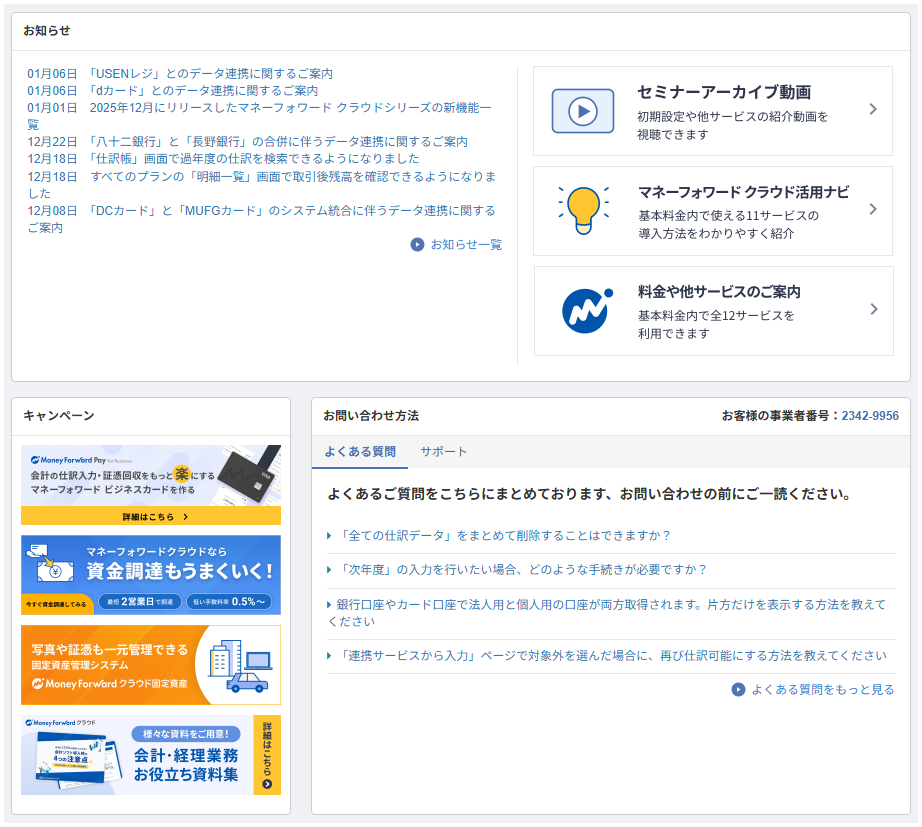
この画面のうっとうしい部分を消すのが目標。 特に左下の「キャンペーン」エリアにある広告バナー群と、右側の「セミナーアーカイブ動画」「活用ナビ」「料金や他サービスのご案内」などのアップセル要素を非表示にする。
Chrome拡張機能の基本構造
Chrome拡張機能は、最小構成で以下の2ファイルがあれば動く。
my-extension/
├── manifest.json    # 拡張機能の設定ファイル(必須)
└── content.js       # Webページに注入するスクリプト
manifest.json
拡張機能のメタ情報と権限を定義するファイル。
{
  "manifest_version": 3,
  "name": "My Extension",
  "version": "1.0",
  "description": "拡張機能の説明",
  "content_scripts": [
    {
      "matches": ["https://example.com/*"],
      "js": ["content.js"],
      "css": ["style.css"]
    }
  ]
}
主要フィールド:
| フィールド | 説明 |
|---|---|
manifest_version | 必ず 3(最新版) |
name | 拡張機能の名前 |
version | バージョン番号 |
content_scripts | Webページに注入するスクリプト/CSS |
matches | スクリプトを実行するURLパターン |
content.js(コンテンツスクリプト)
Webページのコンテキストで実行されるJavaScript。DOMを操作できる。
// 特定の要素を非表示にする例
document.querySelectorAll('.ad-banner').forEach(el => {
  el.style.display = 'none';
});
開発からインストールまでの流れ
1. フォルダを作成
mkdir mf-cleaner
cd mf-cleaner
2. manifest.json を作成
{
  "manifest_version": 3,
  "name": "マネーフォワード_ホーム広告非表示",
  "version": "1.0",
  "description": "うっとうしい広告を非表示にする。大した機能改善がないのに広告だけは多いので非表示。",
  "content_scripts": [
    {
      "matches": ["https://accounting.moneyforward.com/*"],
      "css": ["hide-ads.css"]
    }
  ]
}
3. スタイルシート/スクリプトを作成
hide-ads.css:
/* 非表示にしたい要素のセレクタを指定 */
.announcement-banner,
.promo-card {
  display: none !important;
}
4. Chromeに読み込む
- Chrome で
chrome://extensionsを開く - 右上の「デベロッパーモード」をON
- 「パッケージ化されていない拡張機能を読み込む」をクリック
- 作成したフォルダを選択
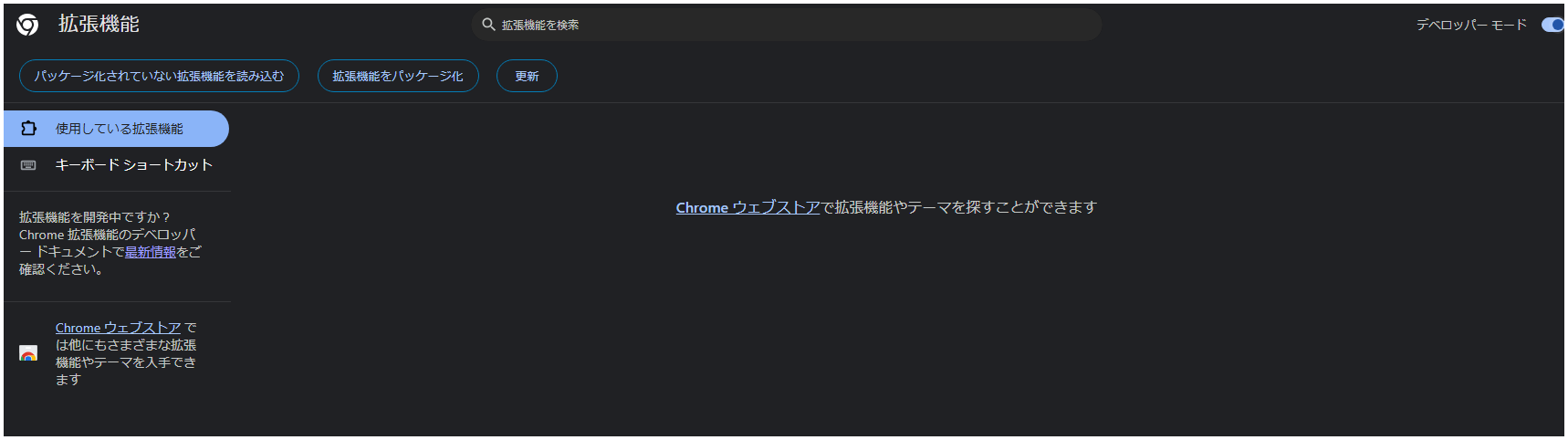
5. 動作確認
対象サイトを開いて、要素が非表示になっていることを確認。
6. 修正時の更新方法
コードを修正したら、chrome://extensions で拡張機能の「更新」ボタン(リロードアイコン)をクリック。
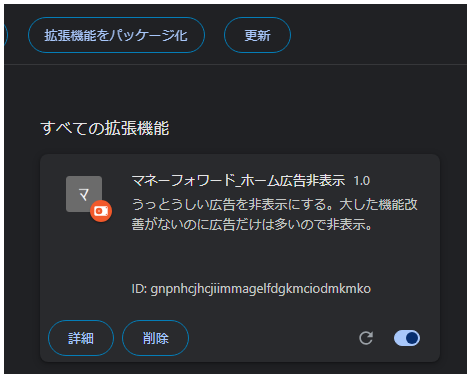
実例:マネーフォワードクラウド会計の広告を消す
対象サイト
- URL:
https://accounting.moneyforward.com/* - ホーム画面にある広告、お知らせ、キャンペーン、チャットボタンなど
非表示にする要素
DevToolsで調査した結果、以下のセレクタが対象:
| セレクタ | 内容 |
|---|---|
.news-container | お知らせエリア |
.campaign-contents | キャンペーン広告 |
.homes-container.contact-container | お問い合わせエリア |
.taxreturn-container | 確定申告関連 |
#taxreturn-home-path | 個人事業主ホームへのリンク |
img.widget-chat-button | チャットボタン |
.widget-chat-button-notification | チャット通知バッジ |
完成版ファイル
実装済みのコードは C:\Users\numbe\Git_repo\chrome-extension-MF\MF_home画面 にある。
manifest.json:
{
    "manifest_version": 3,
    "name": "マネーフォワード_ホーム広告非表示",
    "version": "1.0",
    "description": "うっとうしい広告を非表示にする。大した機能改善がないのに広告だけは多いので非表示。",
    "permissions": [],
    "content_scripts": [
        {
            "matches": ["https://accounting.moneyforward.com/*"],
            "js": ["content.js"],
            "css": ["styles.css"]
        }
    ]
}
content.js(広告非表示の核心部分):
function hideUnwantedElements() {
    // ニュースコンテナを非表示
    const newsContainer = document.querySelector('.news-container')
    if (newsContainer) {
        newsContainer.style.display = 'none'
    }

    // キャンペーンコンテナを非表示
    const campaignContainer = document.querySelector('.campaign-contents')
    if (campaignContainer) {
        campaignContainer.style.display = 'none'
    }

    // その他の不要なDIV要素を非表示
    const unwantedDivs = [
        '.homes-container.contact-container',
        '.homes-contents.homes-contents-large.homes-inquiry-title-container',
    ]

    // 確定申告関連の要素を非表示
    const taxreturnContainer = document.querySelector('.taxreturn-container')
    if (taxreturnContainer) {
        taxreturnContainer.style.display = 'none'
    }

    // 個人事業主ホームへのリンクを含む要素を非表示
    const taxreturnHomePath = document.getElementById('taxreturn-home-path')
    if (taxreturnHomePath) {
        taxreturnHomePath.style.display = 'none'
    }

    // チャットボタンを非表示
    const chatButton = document.querySelector('img.widget-chat-button')
    if (chatButton) {
        chatButton.style.display = 'none'
    }

    // チャットボタンの通知も非表示
    const chatButtonNotification = document.querySelector('.widget-chat-button-notification')
    if (chatButtonNotification) {
        chatButtonNotification.style.display = 'none'
    }

    unwantedDivs.forEach((selector) => {
        const element = document.querySelector(selector)
        if (element) {
            element.style.display = 'none'
        }
    })
}
ポイント:動的要素への対応
マネーフォワードはSPA的な動作をするため、MutationObserverで監視して動的に追加される要素も非表示にする。
function observeDOMChanges() {
    const observer = new MutationObserver((mutations) => {
        mutations.forEach((mutation) => {
            if (mutation.type === 'childList') {
                hideUnwantedElements()
            }
        })
    })

    const config = { childList: true, subtree: true }
    observer.observe(document.body, config)
}

// ページ読み込み時に実行
window.addEventListener('load', () => {
    hideUnwantedElements()
    observeDOMChanges()
})

// URL変更時にも実行(SPA対応)
let lastUrl = location.href
new MutationObserver(() => {
    const url = location.href
    if (url !== lastUrl) {
        lastUrl = url
        hideUnwantedElements()
    }
}).observe(document, { subtree: true, childList: true })
Tips
URLパターンの書き方
| パターン | マッチする例 |
|---|---|
https://example.com/* | example.com の全ページ |
https://*.example.com/* | サブドメイン含む全ページ |
*://example.com/* | http/https 両方 |
CSSとJSの使い分け
- CSS だけで済む場合: 要素の非表示、スタイル変更
- JS が必要な場合: 動的に生成される要素、イベント処理、DOM操作
動的要素への対応
SPAや動的に追加される要素は、MutationObserverで監視する。
const observer = new MutationObserver((mutations) => {
  document.querySelectorAll('.dynamic-ad').forEach(el => {
    el.remove();
  });
});

observer.observe(document.body, {
  childList: true,
  subtree: true
});
デバッグ方法
chrome://extensionsで拡張機能の「エラー」を確認- 対象サイトのDevToolsでコンソールログを確認
- content.js に
console.logを仕込んで動作確認
拡張機能のインストール方法
既に実装済みの拡張機能を使う場合:
- Chrome で
chrome://extensionsを開く - 「デベロッパーモード」をON
- 「パッケージ化されていない拡張機能を読み込む」をクリック
C:\Users\numbe\Git_repo\chrome-extension-MF\MF_home画面フォルダを選択- マネーフォワードを開いて動作確認